
Hardware Requirements
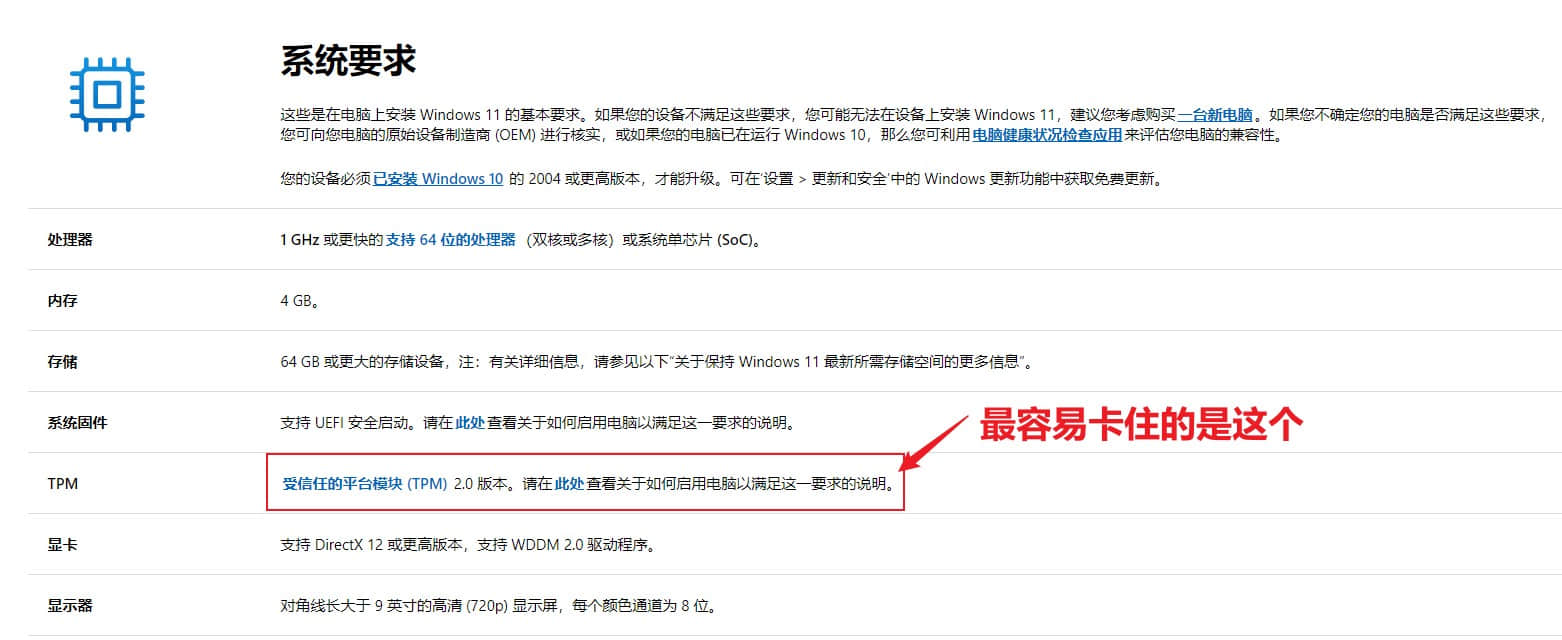
Unlike Windows 10, which has broad hardware compatibility, Windows 11 imposes stricter hardware requirements.
Check Your PC
If you’re unsure whether your PC can run Windows 11, download Microsoft’s official PC Health Check tool:
https://www.microsoft.com/en-us/windows/windows-11#pchealthcheck
Stuck on TPM 2.0?
If your PC fails the TPM 2.0 check, first search online for how to enable TPM 2.0 in your motherboard’s BIOS. Most relatively modern motherboards support it, but the method varies by manufacturer.
If that doesn’t work, you can bypass the TPM check using this tool:
https://github.com/abbodi1406/offlineinsiderenroll/releases/tag/2.6.1
How to use:
- Extract the archive, right-click “OfflineInsiderEnroll.cmd” and select “Run as administrator”.
- In the command window, type “1” to select the Dev channel and press Enter.
- Restart your PC.
How to Upgrade
- Wait for Windows Update to push Windows 11. I waited a day with no luck, so I opted for a manual update.
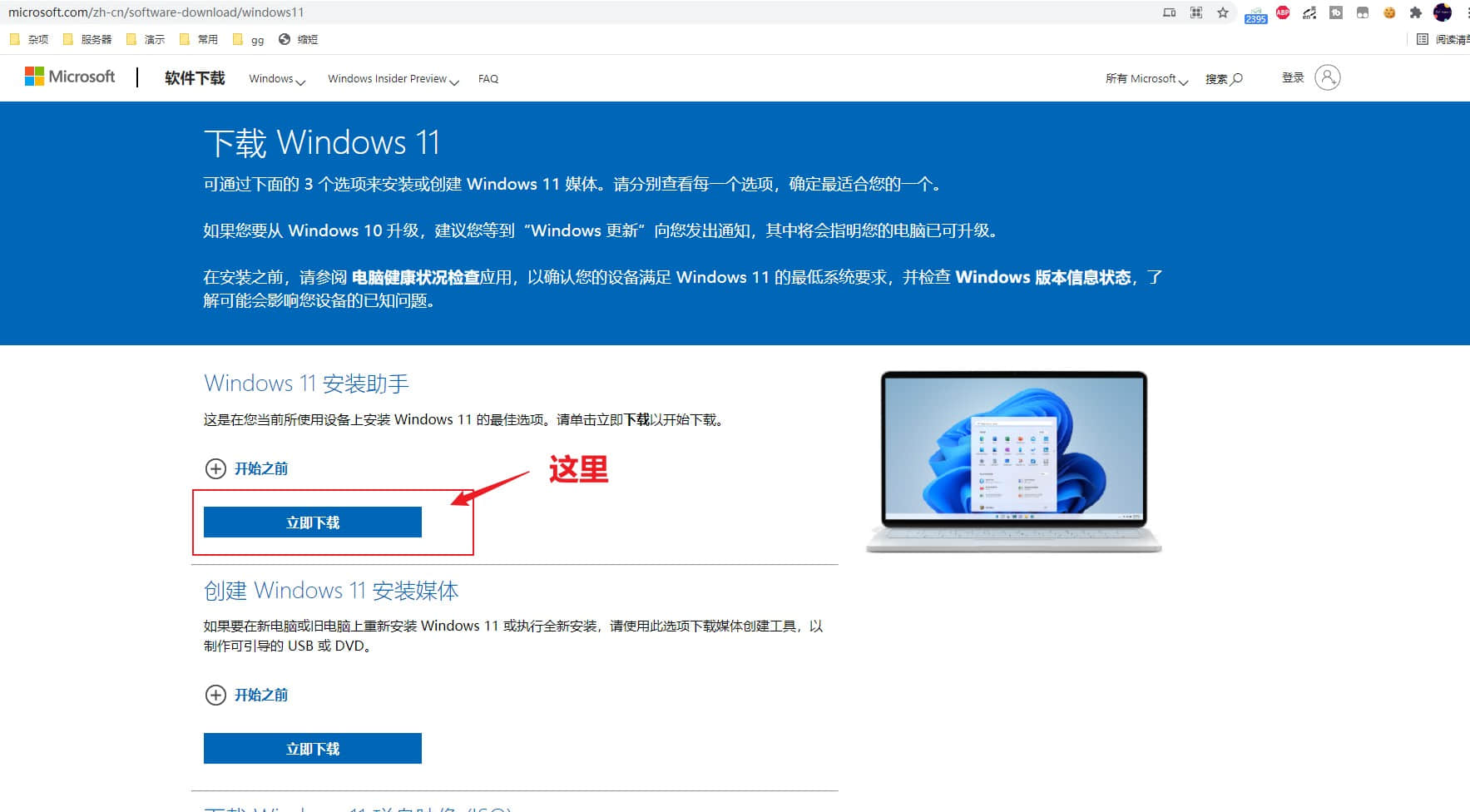
- Go to the Microsoft website and download the Windows 11 Installation Assistant:
https://www.microsoft.com/en-us/software-download/windows11

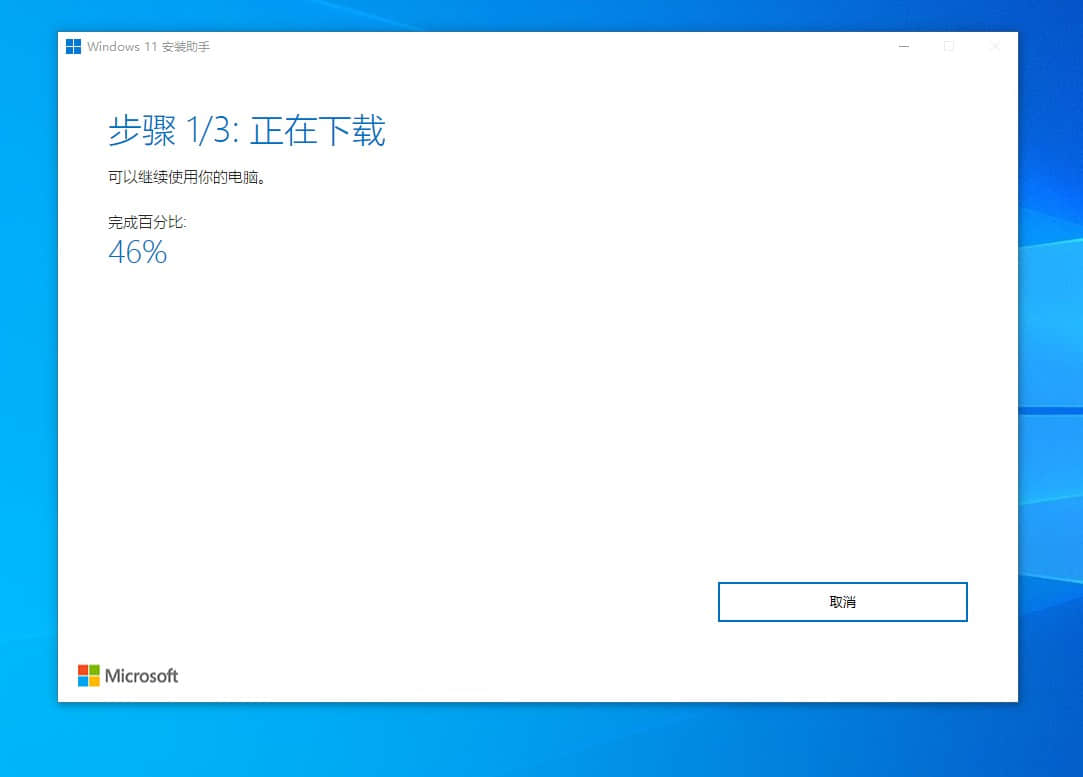
- Double-click the Installation Assistant. After it completes a compatibility check, click “Download and install” to start the update.

- After downloading and installing, your PC will restart automatically within 30 minutes, so save your work.
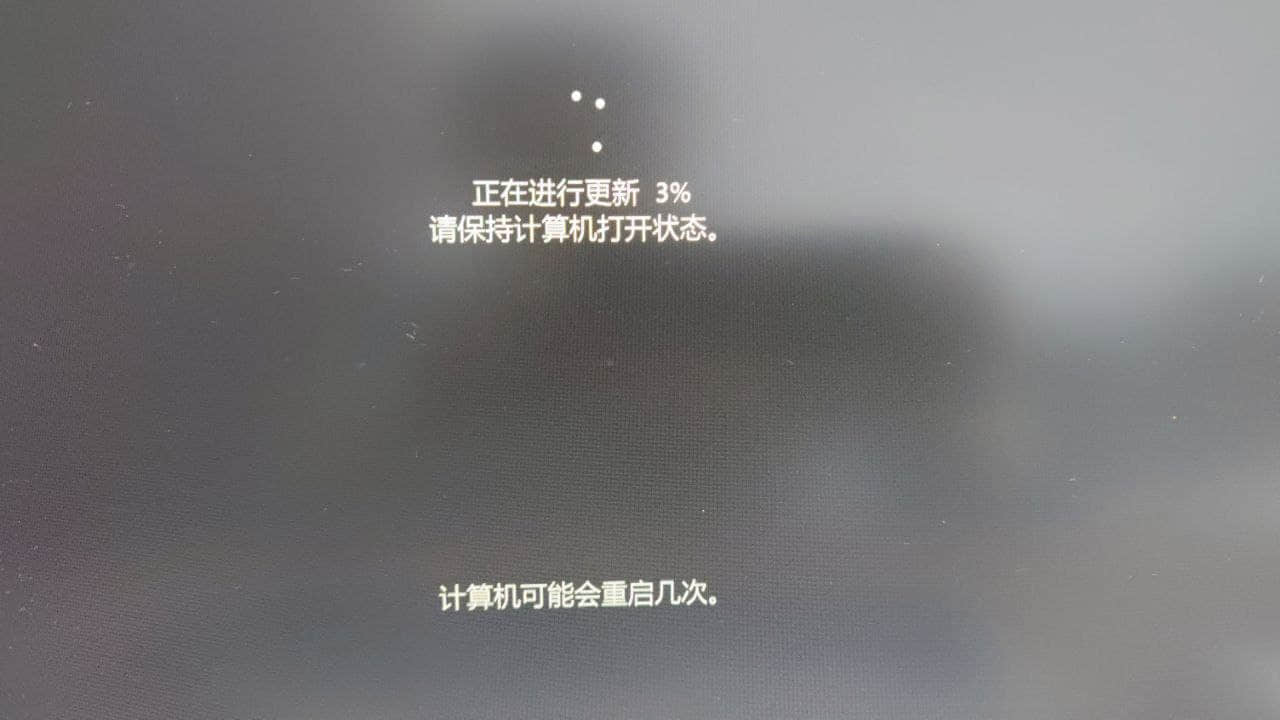
- After restart, the system will finish installing. It takes about 5 minutes to reach the desktop. Then you’re free to customize as you like.

Reposted from jcnf’s site.
For a clean install of Windows 11 on older PCs, check out the video below:

Windows 11 official download: https://bit.ly/3oyh3fv Windows 11 free activation: https://bit.ly/3iyNxmc